


There are many ways you can connect to a windows server using several freely available tools or use an inbuilt tool on a Windows or Linux platform. In the following article, we will discuss a few methods that can help you to connect a windows server using a remote Windows or Linux workstation.
- Connecting From A Windows Machine
- Connecting From A Linux Machine
- Connecting From A Tablet/Smartphone
Connecting from a Windows machine
MSTSC (Remote Desktop Services)
Remote Desktop Services allows you to take control of a remote computer or virtual machine over a network connection. RDS is Microsoft's implementation of a thin client, where Windows software, and the entire desktop of the computer running RDS, are made accessible to a remote client machine that supports Remote Desktop Protocol (RDP).
You can find the tool in the start menu -> Windows Accessories -> Remote Desktop Connection
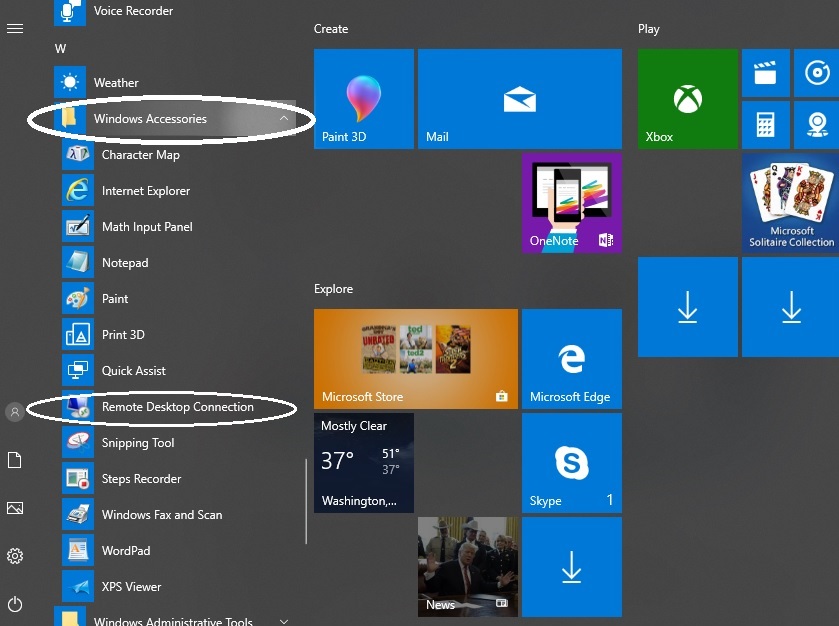
There's also a shortcut to open the Remote Desktop Connection window. This can be done with minimum steps given below
Step 1: Click the Start button.
Step 2: Click Run
Step 3: Type “mstsc” and press the Enter key.
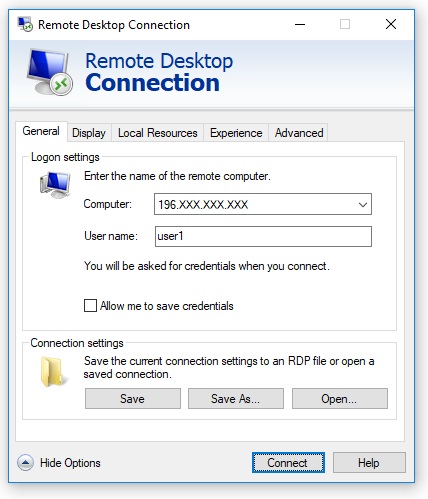
Step 4: Next to Computer: type in the IP address of your server and Click Connect.
You will see the Windows login prompt. Refer to the image below:
Connecting from a Linux machine
Given the popularity among system admins of using a Linux machine, it is very common scenarios where they might need to connect to a windows server using their Linux consoles. This can be easily done using an available tool called "Freerdp".
‘Freerdp’ package is available in the default CentOS 7 and RHEL 7 repositories. In Case you have installed your CentOS 7 or RHEL 7 with Desktop Environments like GNOME or KDE then ‘Freerdp’ package will be installed automatically. If not, we have to manually install ‘Freerdp’ package.
Let us see how to Install and connect through Freerdp on CentOS 7 / RHEL 7
Step 1: First of all we need to install Desktop environment related packages
# yum install "@X Window System" xorg-x11-xauth xorg-x11-fonts-* xorg-x11-utils –yNote: xfreerdp command will not work from the command line if these packages are not installed
Step 2: Install Freerdp
# yum install freerdp -yPost successful installation we can now connect to a windows server through "xfreerdp" command.
# xfreerdp -g 800x600 -u user_name 168.XXX.XXX.XXXNote: You can change the screen resolution parameters as per your requirement.
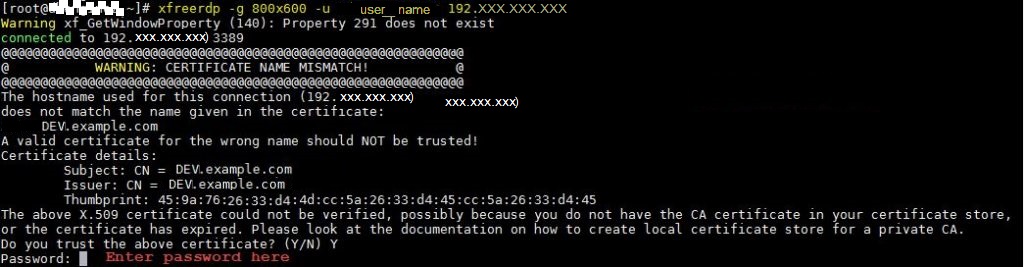
That's all. You have successfully installed and remotely connected to a windows system using freerdp
Connecting from a tablet/smartphone using an iOS/Android
Microsoft Remote Desktop
Connecting to a Windows server is easy from a tablet or a smartphone running on the iOS/Android platform. You can use Microsoft Remote Desktop (A Microsoft proprietary software) for both iOS and Android OS. With the Microsoft Remote Desktop app, you can connect to a remote server/PC from almost anywhere.
This is a very easy to use and user-friendly tool and has a rich Windows experience with RemoteFX in a Remote Desktop client designed to help you get your work done
From Android-based devices (Tablet/Smartphone)
Supported Versions: Windows 8.1/10/Server 2019/Server 2016/Server 2012 R2
Download from: https://play.google.com/store/apps/details?id=com.microsoft.rdc.android
How to create a Remote Desktop connection:
Step 1. In the Connection Center tap +, and then tap Desktop.
Step 2. Enter the following information for the machine you want to connect to:
PC name – the name of the computer you wish to connect.
This can be a Windows computer name or an IP address. You can also append port information to the PC name
Dev_Server:1234 (Dev_Server is the machine name | 1234 is the port number)
192.00.00.00:1234 (912.00.00.00: is the IP address | 1234 is the port number)
User name – The user name to use to access the remote PC.
You can specify whether to prompt for a user name and password.
Step 3. Tap Save
From iOS based devices(iPad/iPhone)
Supported Versions: Windows 8.1/10/Server 2019/Server 2016/Server 2012 R2
Download from: https://itunes.apple.com/us/app/microsoft-remote-desktop/id714464092?mt=8
How to create a Remote Desktop connection:
Step 1. In the Connection Center tap +, and then tap Add PC or Server.
Step 2. Enter the following information for the computer you want to connect to:
PC name – the name of the computer you wish to connect.
This can be a Windows computer name or an IP address. You can also append port information to the PC name
Dev_Server:1234 (Dev_Server is the machine name | 1234 is the port number)
192.00.00.00:1234 (912.00.00.00: is the IP address | 1234 is the port number)
User name – The user name to use to access the remote PC.
You can specify whether to prompt for a user name and password.
Step 3. Tap Save
Hope you find these techniques useful. If you like the article above, please upvote it.