


How to host your own RUST server
Over the past few weeks, developer Facepunch Studios revealed its online survival game, RUST, has generated over $1 million twice in one week. The game was released back in 2013; RUST is having what many say is an "Among Us" style surge in popularity. (Source - Facepunch Studios). This popularity explosion is directly associated with a group of high-profile streamers who have taken to playing RUST together on a private server started by Offline TV.
This sudden rise in RUST communities is a strong enough reason to run your own RUST dedicated server and invite players for an online bout. For this, first, you need the right service provider from where you can order your dedicated server, followed by installing and running the RUST server. In the following article, we will help you with
Ordering Dedicated Server
Access your Server
Configure RUST on your Server
Launch RUST Server
Ordering a Dedicated Server
Psychz Networks offers the best hosting solutions with high performing infrastructure to suit your budgets. We offer a wide range of hardware options to choose from and customize your server according to your needs. We give the customers full freedom to choose among various features and customize the server as per their requirements. All you have to do is visit our dedicated hosting page and select our live inventory features. You can choose between Processor, processor type, Hard disk, RAM, Operating System, Control Panels, Port Speed, Bandwidth, and various other features.
You can use our live inventory to check the available hardware from the desired location, custom configure your server, check the price, and checkout immediately. Please use the following link to browse into our inventory system https://www.psychz.net/dashboard/client/web/order/dedicated-server?processor=&processorBaseFreq=&numberOfCpu=7391&cpuCores=&location=
For hardware and software configuration, please select use the following specifications guideline.
Software & Hardware System Requirements
Operating System: Windows (7, 8.1 or 10, Server 2012, server 2016) 64-bit | Ubuntu, Debian, Fedora, or CentOS.
Memory: RAM 4GB (minimum)
Storage: Hard Drive Space 10GB (minimum)
CPU: Dual-core at 3.4GHz or higher
Tool: Archive/Compression Tool
Note: You need to choose your dedicated server's location wisely, depending on the majority of your users connecting region. This will reduce the overall latency while the game is in action.
Accessing your Dedicated Server
We are assuming that you have ordered your server with the minimum desired specifications. With a Windows Operating system, we will now proceed with the installation and launching steps of RUST on your dedicated server.
At Psychz Networks, every server comes with a much more advanced interface called Intelligent Platform Management Interface (IPMI), which will allow you remote management for bios, reboot, shutdown, os install, install third party application, etc. Please follow the steps given in the following link to access your server using IPMI https://www.psychz.net/client/kb/en/how-to-access-your-dedicated-server-ipmi.html
Once you have access to your dedicated server, we will start setting up the RUST application on your machine.
Configuring RUST on your Dedicated Server
Download and Install SteamCMD
Step 1: Create a new folder named "steamcmd" under C: drive
e.g.
c:\steamcmd\
Step 2: Download SteamCMD for Windows from the SteamCMD – Valve Developer Community website.
Download link - https://developer.valvesoftware.com/wiki/SteamCMD
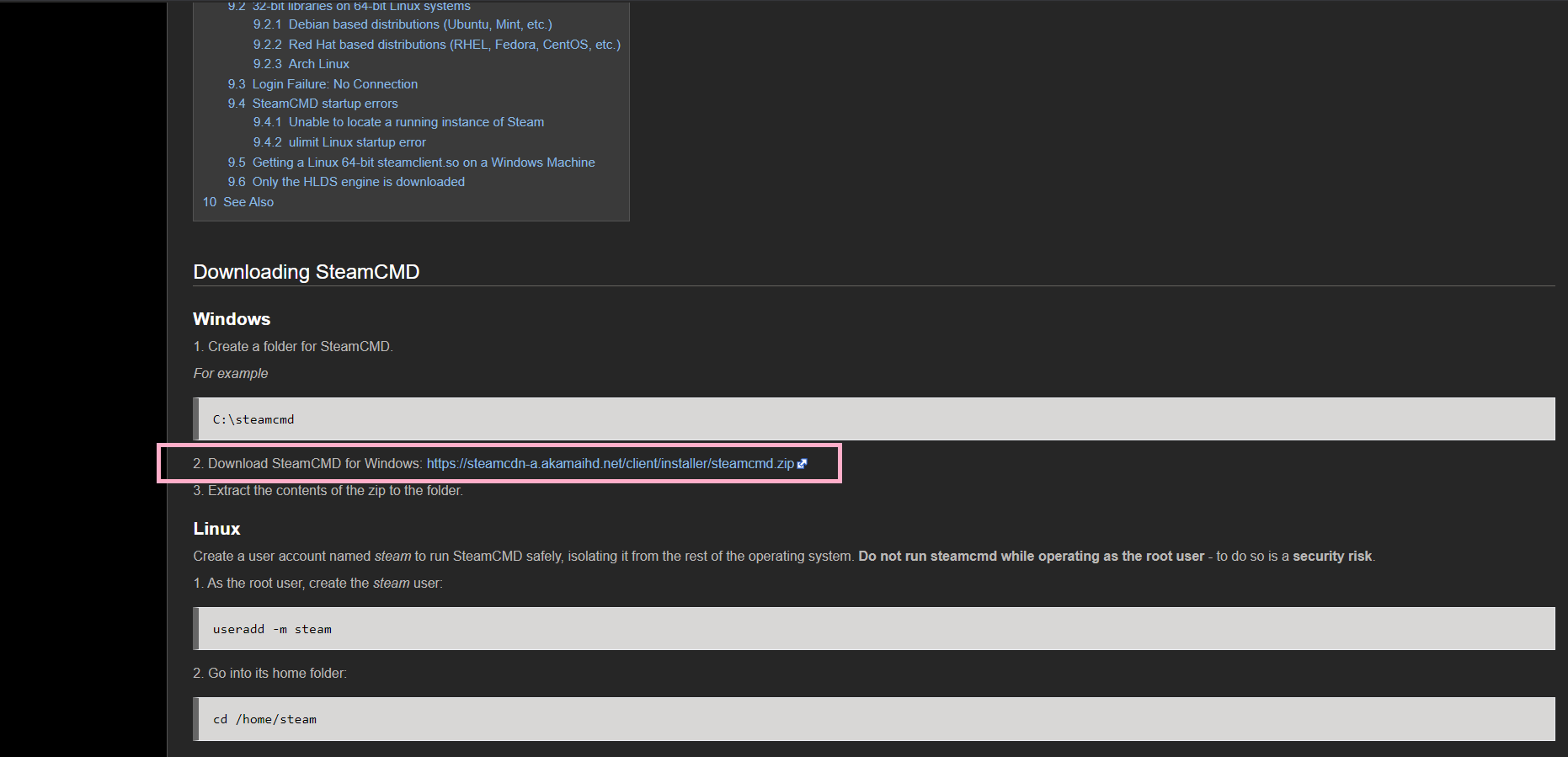
Step 3: Extract the zip file and copy the "steamcmd.exe" file to "C:\steamcmd\" location
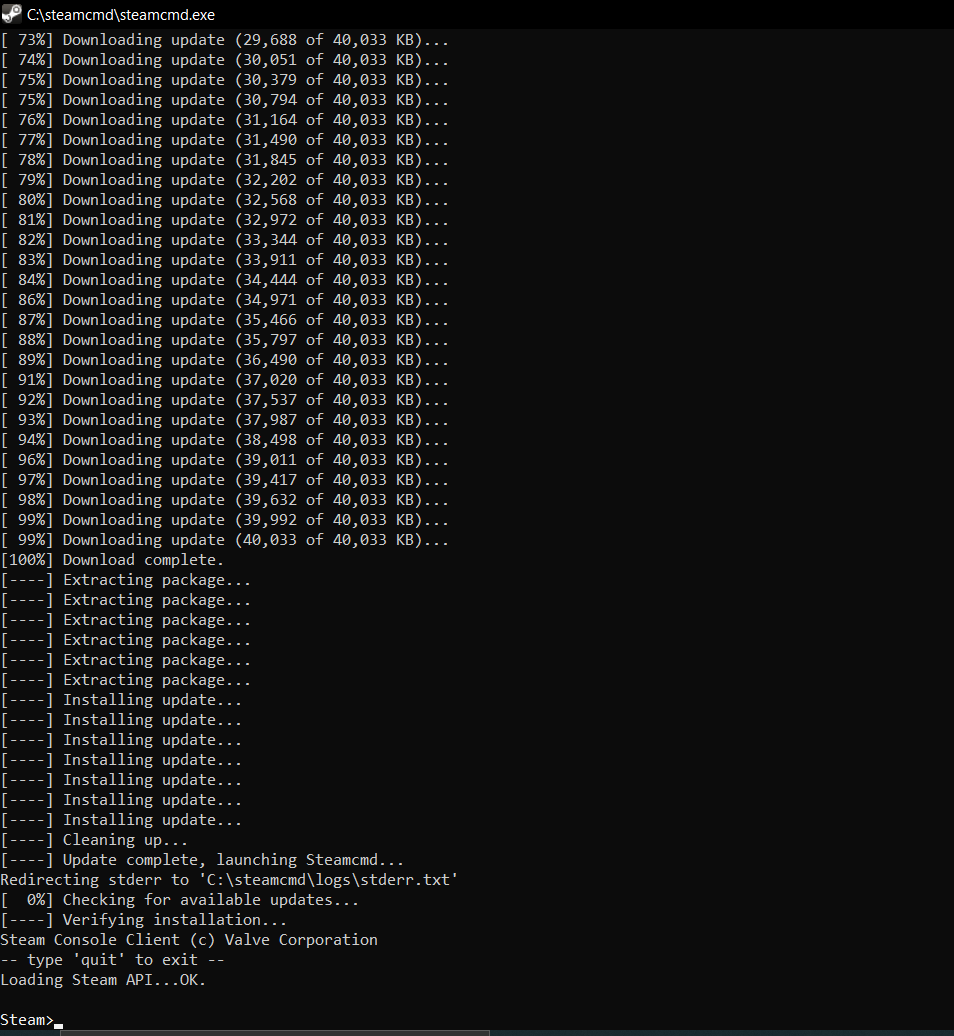
Step 4: Double click on the "steamcmd.exe" application file. This will initiate downloading the latest updates from steam servers. When the update is completed, you will be directed to a SteamCMD prompt.
Login to SteamCMD
Step 1: Now, login to the steam server through SteamCMD using the following command
Steam> login anonymous
Output
Connecting anonymously to Steam Public...Logged in OK

Waiting for user info...OK
Keep the SteamCMD console open for the next step.
Note: Some servers will require you to use a Steam account.
Download & Install RUST Dedicated Server
Step 1: In the SteamCMD prompt, set the installation folder for where your RUST Dedicated Server will install and run from by entering the following command:
force_install_dir C:\steamcmd\rust_server\The above command will set the destination from which your RUST Dedicated Server files will be installed and run from.
Step 2: Download and install the RUST Dedicated Server by firing the following command:
app_update 258550 validateWhen download and installation are complete, the SteamCMD console will look something like this:
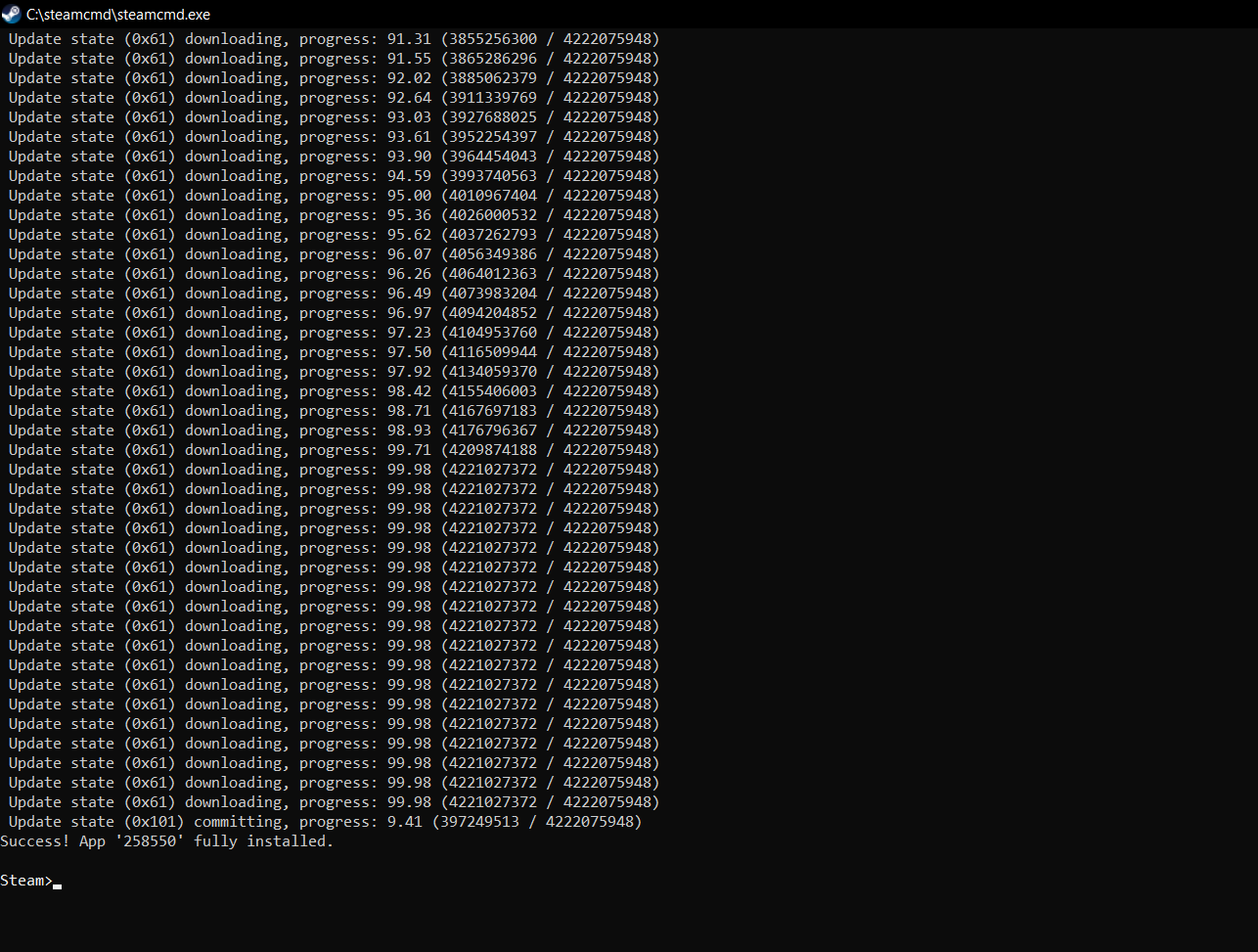
All the files are downloaded into your C:\steamcmd\rust_server\ directory, allowing you to now run all of the necessary files for a Vanilla RUST Server.
Launch your RUST Dedicated Server
Step 1: Locate RustDedicated.exe file under C:\steamcmd\rust_server and execute it. This should start loading (it takes about a few minutes) your RUST dedicated server.
Once the game is loaded, press F1 to bring up the RUST Console and type the following command:
client.connect 170.XX.XX.XX:28015Note: 170.XX.XX.XX is a dummy IP address. Replace this with the IP address of your server.
This will connect you to your RUST Dedicated Server. And that's it; you are now running a RUST Dedicated Server!
We hope that you find the above information helpful and successfully install RUST on your dedicated server. If you have any further queries, please leave us a comment, or for any hardware or service related queries, please write to our sales team at sales@psychz.net or call us at 1-800-933-1517. For more information, please visit www.psychz.net.
Do not forget to upvote us if you like this help guide.